Open in Messages.
Tap + in a conversation and choose MessagePics. You’re already in the right place.

What they see before they tap
Messages can crop photo previews, hiding faces, captions, or the punchline. Not everyone knows to tap.
MessagePics helps keep the whole photo visible right in the conversation.
For iPhone · iOS 17 or later

No manual resizing. No jumping between editors. Just your photo, ready for the conversation.
Tap + in a conversation and choose MessagePics. You’re already in the right place.
Choose an image from your library. MessagePics adds the padding it needs automatically.
Your fitted photo lands in the message draft. Tap send whenever you’re ready.
Big landscapes. Tiny captions. That very important dog. Give every part of your photo a place in the bubble.
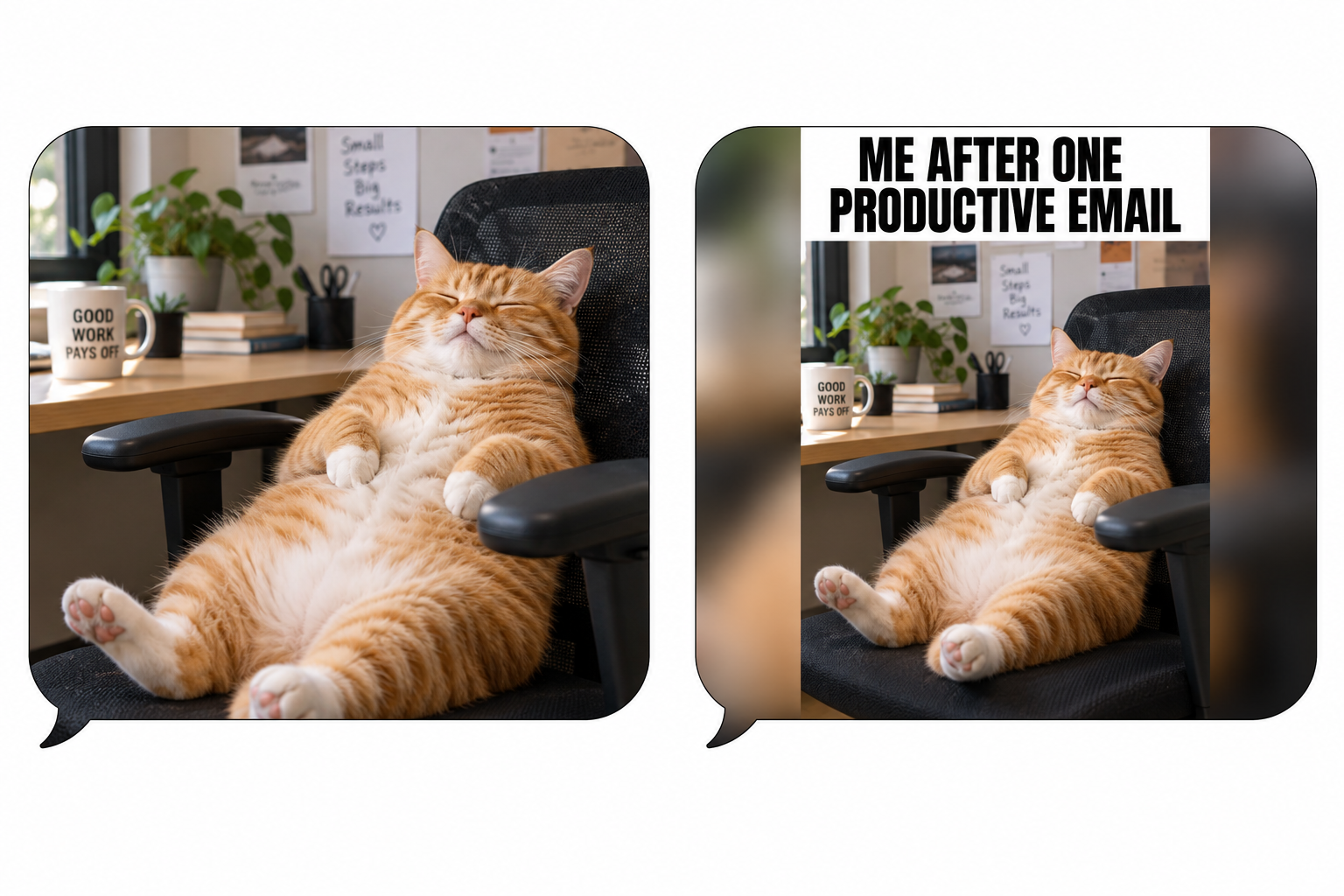
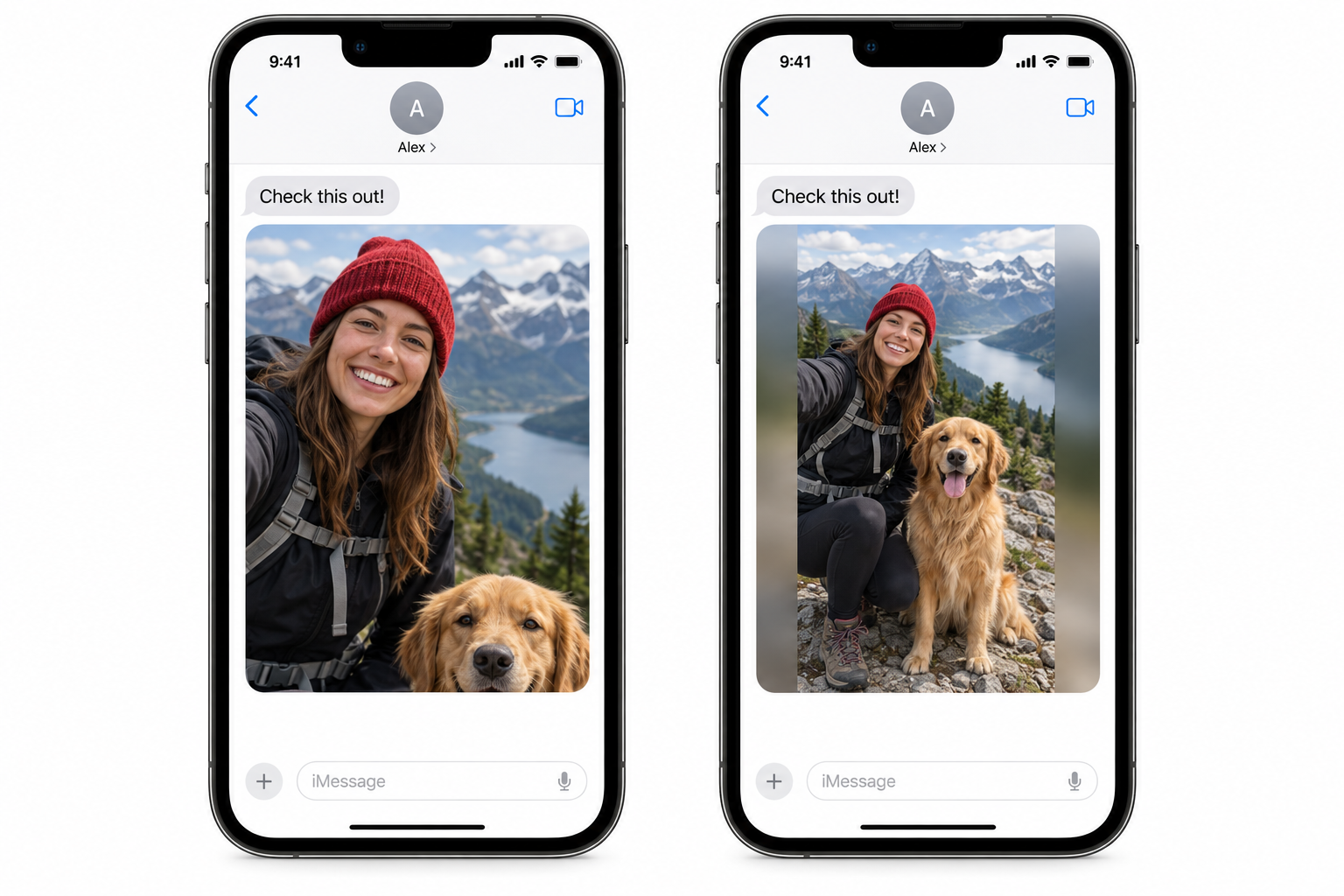
Illustrative previews. Appearance may vary by device, iOS version, and message layout.
Let Soft Blur blend into your photo’s colors, or keep things simple with a solid background.
Five backgrounds. One saved preference.
Your original photo stays exactly as it was.
MessagePics processes photos on your device. No account, no photo upload service, and no analytics SDK. Just a little help getting your picture across.
MessagePics is a Messages photo-formatting app for iPhone. It adds carefully sized padding to help the whole photo stay visible in a Messages bubble, including faces, captions, and details near the edges.
Messages can enlarge and crop a photo preview to fit its bubble. The original image may still be complete when opened. MessagePics prepares a padded version designed to keep more of the full image visible directly in the conversation.
Once installed, open a conversation in Messages, tap the + button, and choose MessagePics. Pick a photo. MessagePics prepares it and adds it to your message draft. You choose when to send.
No. MessagePics sends a regular JPEG image through Messages. Your recipient can see it without installing MessagePics.
No. Your original stays unchanged in your library. MessagePics creates a separate JPEG with added padding. Exports are up to 1600 pixels on the longest side; smaller photos are not upscaled.
Yes. Choose Soft Blur, a color drawn from your photo, White, Black, or Message Gray. Soft Blur is the default, and your choice is saved for future photos.
MessagePics processes selected photos on your device and has no photo upload service or analytics SDK. Apple may download a selected original from iCloud Photos. Sending the finished photo uses Apple’s Messages service.
MessagePics requires an iPhone running iOS 17 or later. It works with images selected through Apple’s photo picker. Live Photos and animated images are exported as a single still frame, rather than motion or animation.
Preview behavior can vary across devices, iOS versions, and message layouts, especially grouped attachments. MessagePics’s padding is calibrated to help preserve the full image in single-photo previews; identical results in every layout are not guaranteed.
Your next great photo deserves the whole bubble.
Download on the App StoreFor iPhone · iOS 17 or later